
Recently I have returned to Robot Operating System (ROS) after many years. A lot has changed and its a way bigger framework that the last time I used it. Working out which version to use, and how to set it up caused days of banging my head into the keyboard. Essentially, its very open source, changes a lot and so its hard to find an explicit ‘how to’ for ‘these needs’. As I now have things working I wanted to write them down because it might save someone else some time.
So the needs I had setting out were to control a universal robot, either sim or real using ROS and MoveIt for planning. UR robots have provided tools for the job, and there is both a URSim for simulating a robot, and ROS driver. Its all documented and available here. The project that drove this setup was a rapid R&D get things working quickly, so I favoured using python over c++. When deciding on which ROS environment was right, it turns out that python and ROS has changed quite a bit between ROS1 & ROS2, and from what I have found in ROS2, python still isnt fully working as such. Well, ROS documentation points you towards using moveitpy as the python wrapper, since the moveit commander had been dropped from ros when it updated to 2. However, you dont need to get stuck down that rabbit hole. moveitpy acts as a direct interaction to the robot rather than a separate node that talks to an instance of moveit.
Installing ROS2 Jazzy:
Luckily most of the main ros tools are available through ubuntu package manager. Jazzy runs on ubuntu 24.04.
sudo apt update
sudo apt upgrade
sudo apt install ros-jazzy-desktop
sudo apt install ros-dev-tools
Once installed you need to add the tools to the path with the follow. Its easier to add this to your .bashrc to save executing it every new terminal.
source /opt/ros/humble/setup.bashInstalling ur_client_library:
With ROS installed you now need the ur_client_library which includes both URSim and ur_robot_driver.
sudo apt install ros-jazzy-ur-client-librarySetting up URSim & ur_robot_driver:
With ROS and ur_client_library installed we can get a virtual robot running, and a ros driver connecting to it. URSim runs inside a docker container which is pulled using a script which comes with ur_client_library. To pull and run the docker execute:
ros2 run ur_client_library start_ursim.shThis will create a vnc service to the virtual controller which can be access at http://localhost:6080/vnc.html. You will be presented with the virtual control where you need to power and enable the robot.
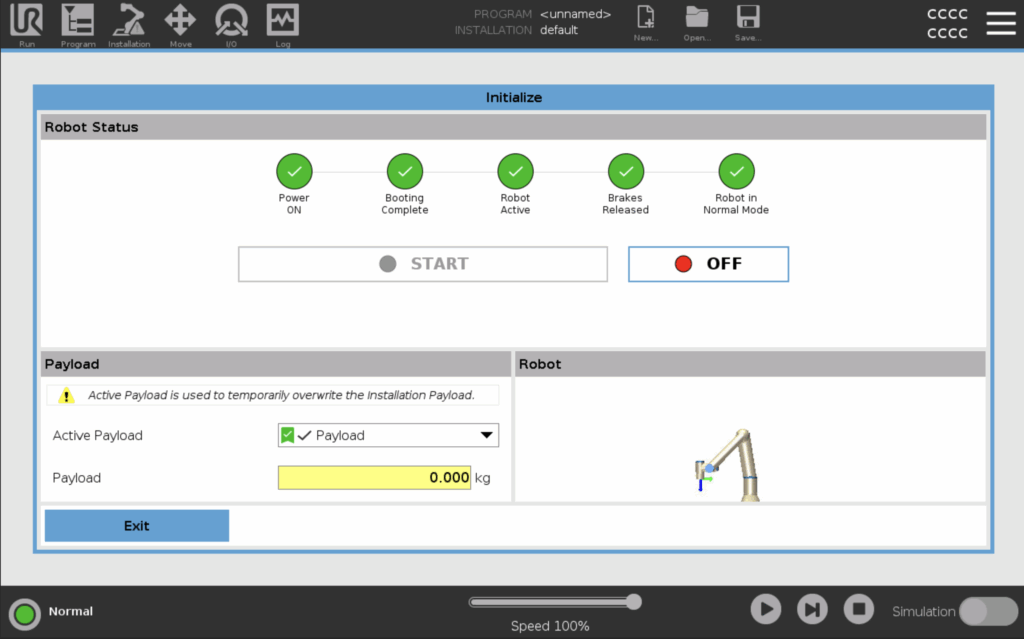
In order to setup the communication interface for the ros driver there are a couple more steps. You need to download the external control-105 files here. Create a directory ‘ursim_mnt’ and inside that two new directories ‘programs’ & ‘urcaps’. Save the download files into ‘ursim_mnt/urcaps/’. When you launch ursim you then mounts these files as volumes inside the docker container and ursim will then be setup for external control.
The new launch command will be:
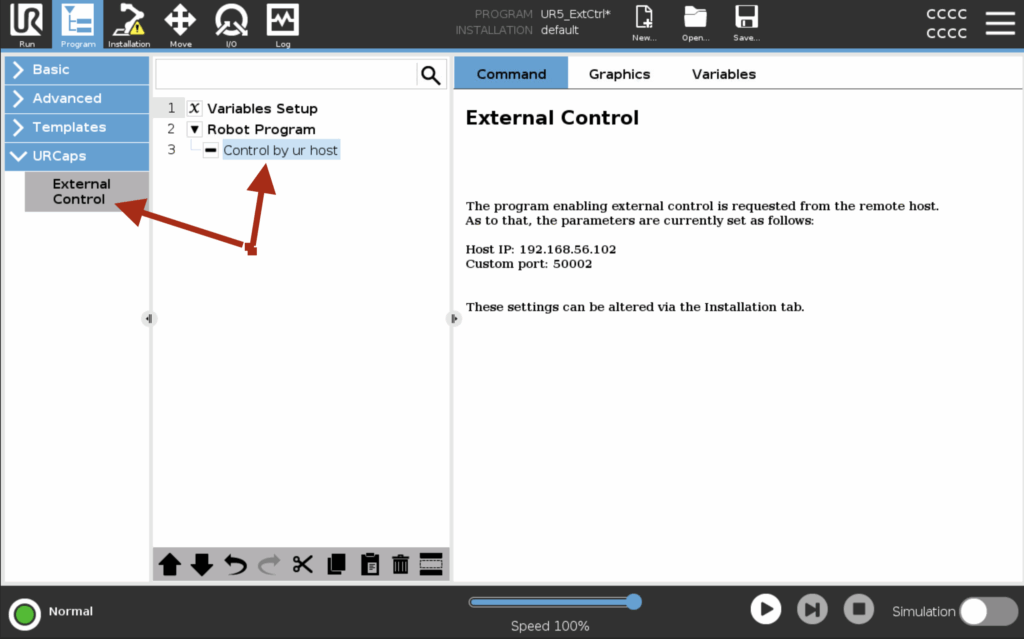
ros2 run ur_client_library start_ursim.sh -p $(pwd)/ursim_mnt/programs -u $(pwd)/ursim_mnt/urcapsA final step is to create a new program on the robot that uses urcaps. In the new program you need to add the external control by clicking on ur caps/external control on the left.
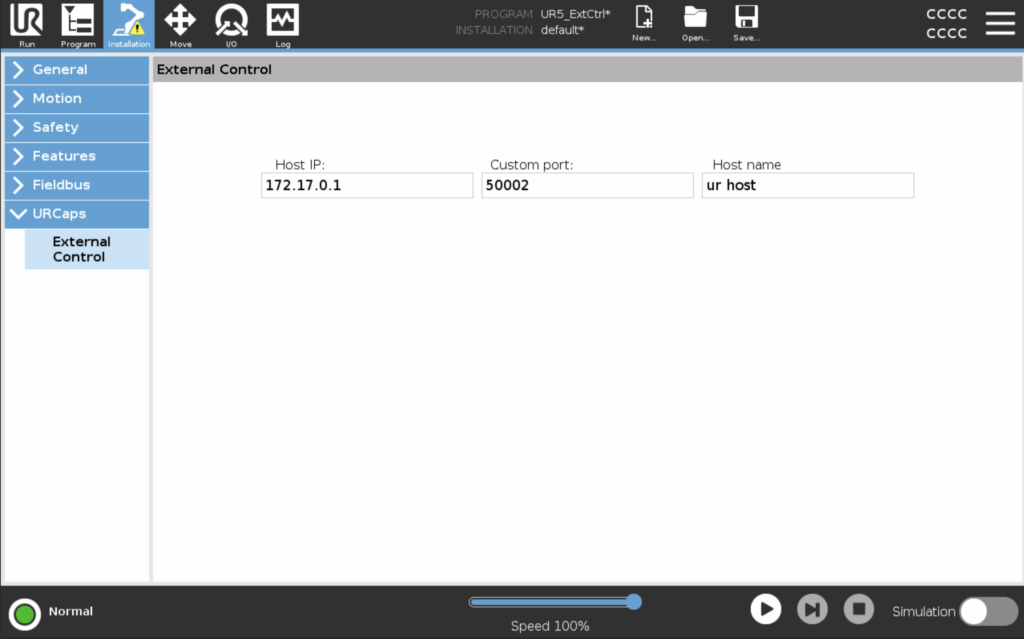
Next you need to configure the IP for urcaps in the installation tab. The host ip should be the ip of the ur_robot_driver instance. If you run ursim through docker, and ur_robot_driver on the host, the ip will be 172.17.0.1
You can now test this by launching the ur_robot_driver which will have docker ip 192.168.56.101 with:
ros2 launch ur_robot_driver ur_control.launch.py ur_type:=ur5e robot_ip:=192.168.56.101And then run the new program on the robot. They should connect without error.
Launching MoveIt and moving the robot:
ur_client_library comes with a moveit launch file, which provides a good way to test moveit at this stage. With both ursim and the ros driver running, execute the following which will launch rviz with moveit. This configuration will launch moveit with the ompl planner, which can be a bit limited for some tasks. Later on I will go through configuring the pilz planner for more control.
ros2 launch ur_moveit_config ur_moveit.launch.py ur_type:=ur5e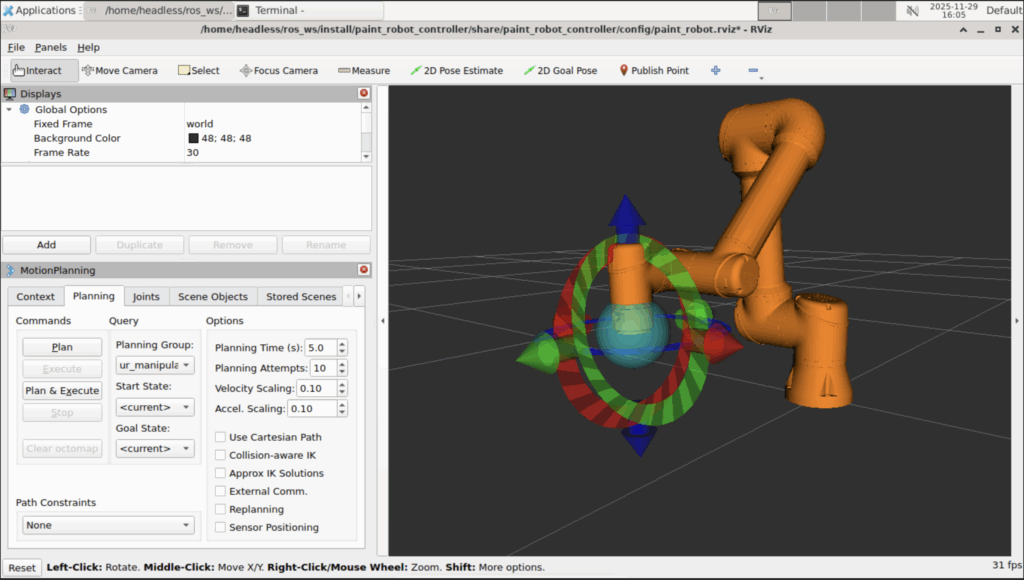
You should see rviz with the robot displayed and synchronised with the ursim robot pose. If you go to the ur controller vnc you should be able to move the robot and see rviz update, which demonstrates that the basic synchronisation is work. The next text would be to use moveit to command the robot. Back in rviz, there will be an orange visual of the robot with cartesian handles which you can move with the mouse. This positions the target pose of the robot. In the planning both you can then send the post command to instruct the movement. As long as the program with urcaps is running on the robot, the ip is set correctly, the ros driver is running, then you should see the robot move to the instructed pose (as long as its achievable.
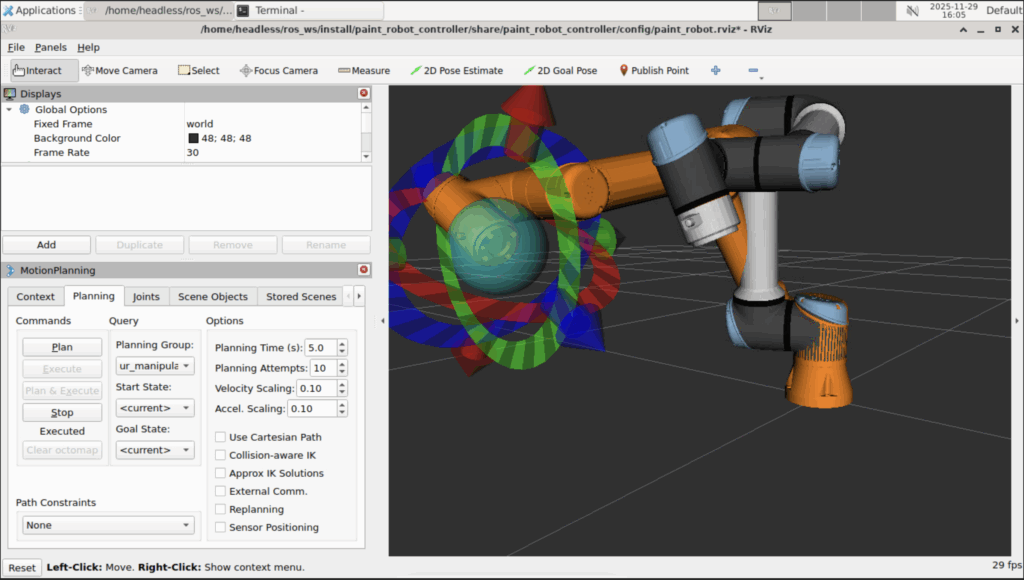
Custom moveit launch file for PILZ planner integration:
I have modified the ur_moveit_config launch file to work with for my needs which includes adding the pilz planner. This is launched the same way, but from a new ros package. I have posted a public github repo that matches this post here https://github.com/voidnoise/URMoveIt which has this inside a package.
import os
import yaml

from pathlib import Path

from launch import LaunchDescription
from launch.actions import DeclareLaunchArgument, RegisterEventHandler
from launch.conditions import IfCondition
from launch.event_handlers import OnProcessExit
from launch.substitutions import (
    LaunchConfiguration,
    PathJoinSubstitution,
)

from launch_ros.actions import Node
from launch_ros.substitutions import FindPackageShare

from moveit_configs_utils import MoveItConfigsBuilder

from ament_index_python.packages import get_package_share_directory


def load_yaml(package_name, file_path):
    package_path = get_package_share_directory(package_name)
    absolute_file_path = os.path.join(package_path, file_path)

    try:
        with open(absolute_file_path) as file:
            return yaml.safe_load(file)
    except OSError:  # parent of IOError, OSError *and* WindowsError where available
        return None


def declare_arguments():
    return LaunchDescription(
        [
            DeclareLaunchArgument("launch_rviz", default_value="true", description="Launch RViz?"),
            DeclareLaunchArgument(
                "ur_type",
                description="Typo/series of used UR robot.",
                choices=[
                    "ur3",
                    "ur5",
                    "ur10",
                    "ur3e",
                    "ur5e",
                    "ur7e",
                    "ur10e",
                    "ur12e",
                    "ur16e",
                    "ur8long",
                    "ur15",
                    "ur20",
                    "ur30",
                ],
            ),
            DeclareLaunchArgument(
                "warehouse_sqlite_path",
                default_value=os.path.expanduser("~/.ros/warehouse_ros.sqlite"),
                description="Path where the warehouse database should be stored",
            ),
            DeclareLaunchArgument(
                "launch_servo", default_value="false", description="Launch Servo?"
            ),
            DeclareLaunchArgument(
                "use_sim_time",
                default_value="false",
                description="Using or not time from simulation",
            ),
            DeclareLaunchArgument(
                "publish_robot_description_semantic",
                default_value="true",
                description="MoveGroup publishes robot description semantic",
            ),
        ]
    )


def generate_launch_description():
    launch_rviz = LaunchConfiguration("launch_rviz")
    ur_type = LaunchConfiguration("ur_type")
    warehouse_sqlite_path = LaunchConfiguration("warehouse_sqlite_path")
    launch_servo = LaunchConfiguration("launch_servo")
    use_sim_time = LaunchConfiguration("use_sim_time")
    publish_robot_description_semantic = LaunchConfiguration("publish_robot_description_semantic")

    ur_moveit_pkg = get_package_share_directory("ur_moveit_config")
    ur_robot_driver_pkg = get_package_share_directory("ur_robot_driver")


    moveit_config = (
        MoveItConfigsBuilder(robot_name="ur", package_name="ur_moveit_config")
        .robot_description(Path(ur_robot_driver_pkg) / "urdf" / "ur.urdf.xacro", {"ur_type": ur_type, "name": ur_type})
        .robot_description_semantic(Path(ur_moveit_pkg) / "srdf" / "ur.srdf.xacro", {"name": ur_type})
        .moveit_cpp(Path(get_package_share_directory("paint_robot_controller")) / "config/moveit_cpp.yaml")
        .to_moveit_configs()
    )

    print(f"Completed config build")

    warehouse_ros_config = {
        "warehouse_plugin": "warehouse_ros_sqlite::DatabaseConnection",
        "warehouse_host": warehouse_sqlite_path,
    }

    ld = LaunchDescription()
    ld.add_entity(declare_arguments())

    print(f"added declare args")

    wait_robot_description = Node(
        package="ur_robot_driver",
        executable="wait_for_robot_description",
        output="screen",
    )
    ld.add_action(wait_robot_description)

    print(f"added wait robot description")

    move_group_node = Node(
        package="moveit_ros_move_group",
        executable="move_group",
        output="screen",
        parameters=[
            moveit_config.to_dict(),
            warehouse_ros_config,
            {
                "use_sim_time": use_sim_time,
                "publish_robot_description_semantic": publish_robot_description_semantic,
            },
        ],
    )

    print(f"created move node")

    servo_yaml = load_yaml("ur_moveit_config", "config/ur_servo.yaml")
    servo_params = {"moveit_servo": servo_yaml}
    servo_node = Node(
        package="moveit_servo",
        condition=IfCondition(launch_servo),
        executable="servo_node",
        parameters=[
            moveit_config.to_dict(),
            servo_params,
        ],
        output="screen",
    )

    print(f"created servo node")

    rviz_config_file = PathJoinSubstitution(
        [FindPackageShare("paint_robot_controller"), "config", "paint_robot.rviz"]
    )
    rviz_node = Node(
        package="rviz2",
        condition=IfCondition(launch_rviz),
        executable="rviz2",
        name="rviz2_moveit",
        output="log",
        arguments=["-d", rviz_config_file],
        parameters=[
            moveit_config.robot_description,
            moveit_config.robot_description_semantic,
            moveit_config.robot_description_kinematics,
            moveit_config.planning_pipelines,
            moveit_config.joint_limits,
            warehouse_ros_config,
            {
                "use_sim_time": use_sim_time,
            },
        ],
    )

    print(f"created rviz node")

    ld.add_action(
        RegisterEventHandler(
            OnProcessExit(
                target_action=wait_robot_description,
                on_exit=[move_group_node, rviz_node, servo_node],
            )
        ),
    )

    return ld
Using python to send moveit commands:
In a future post I will describe how to use the rclpy ActionClient to send trajectory paths to the moveit planner and execute.
Leave a Reply